User Interface
SCADview is a desktop UI for viewing meshes generated by your Python scripts. This guide is organized around common tasks and the controls that help you complete them.
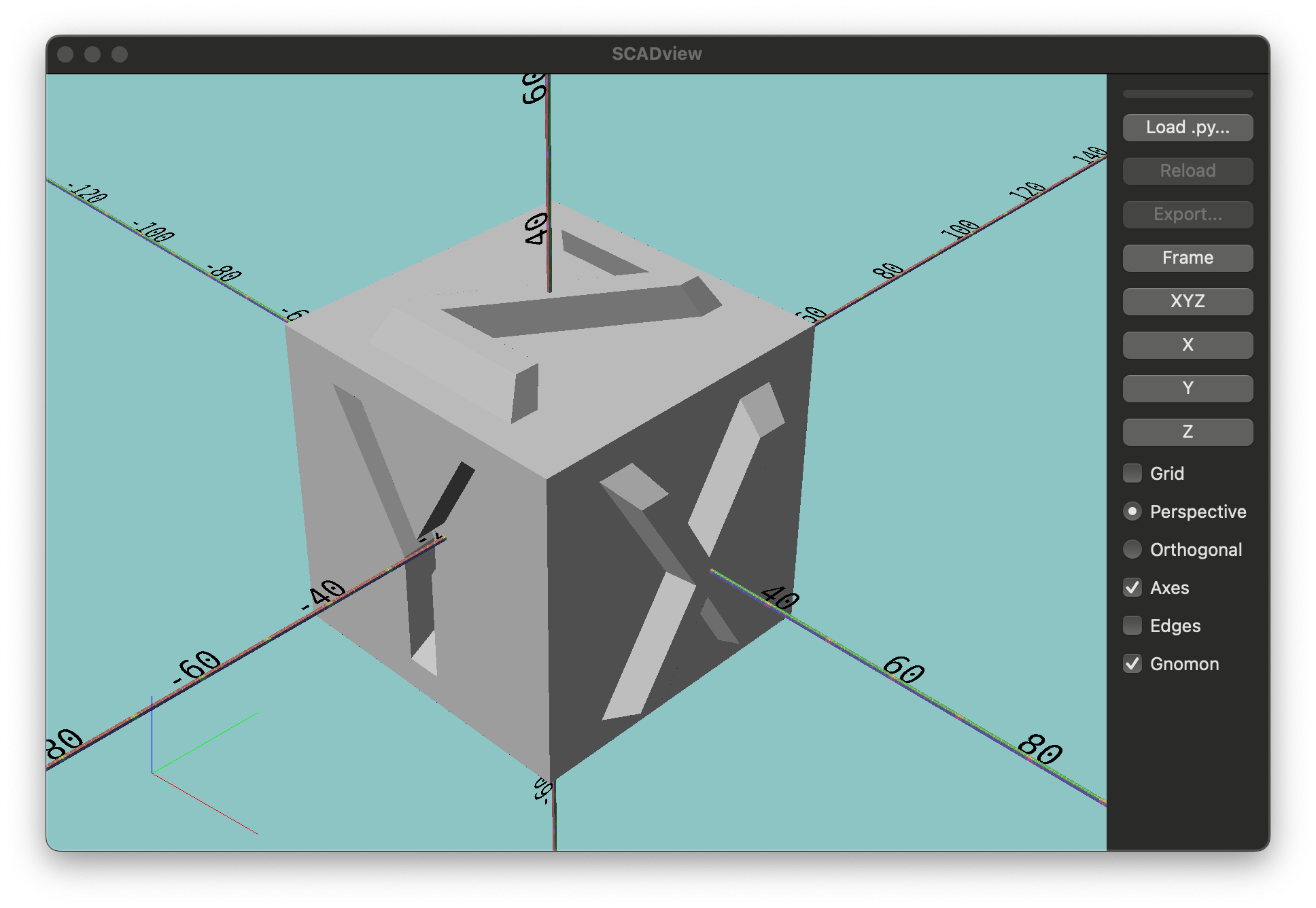
Load, Reload, Export
- If you want to load a mesh script, use
File > Load .py...or theLoad .py...button to pick a Python file that definescreate_mesh. - If you want to re-run the last script after edits, use
File > Reloador theReloadbutton. - If you want to export the current mesh, use
File > Export...or theExportbutton. Export is enabled only after a load completes. - If an export format reports a missing dependency, install the package named in the error, or choose a different format.
View and Inspect
- If you want to refit the camera to the mesh, use
View > Frameor theFramebutton. - If you want fixed viewpoints, use
XYZ,X,Y, orZ(also in theViewmenu).XYZmoves to a canonical view;X,Y, andZshow the mesh from the positive axes. - If you want perspective or orthographic projection, use the radio buttons
labeled
PerspectiveandOrthogonal(also in theViewmenu). - If you want visual helpers, toggle
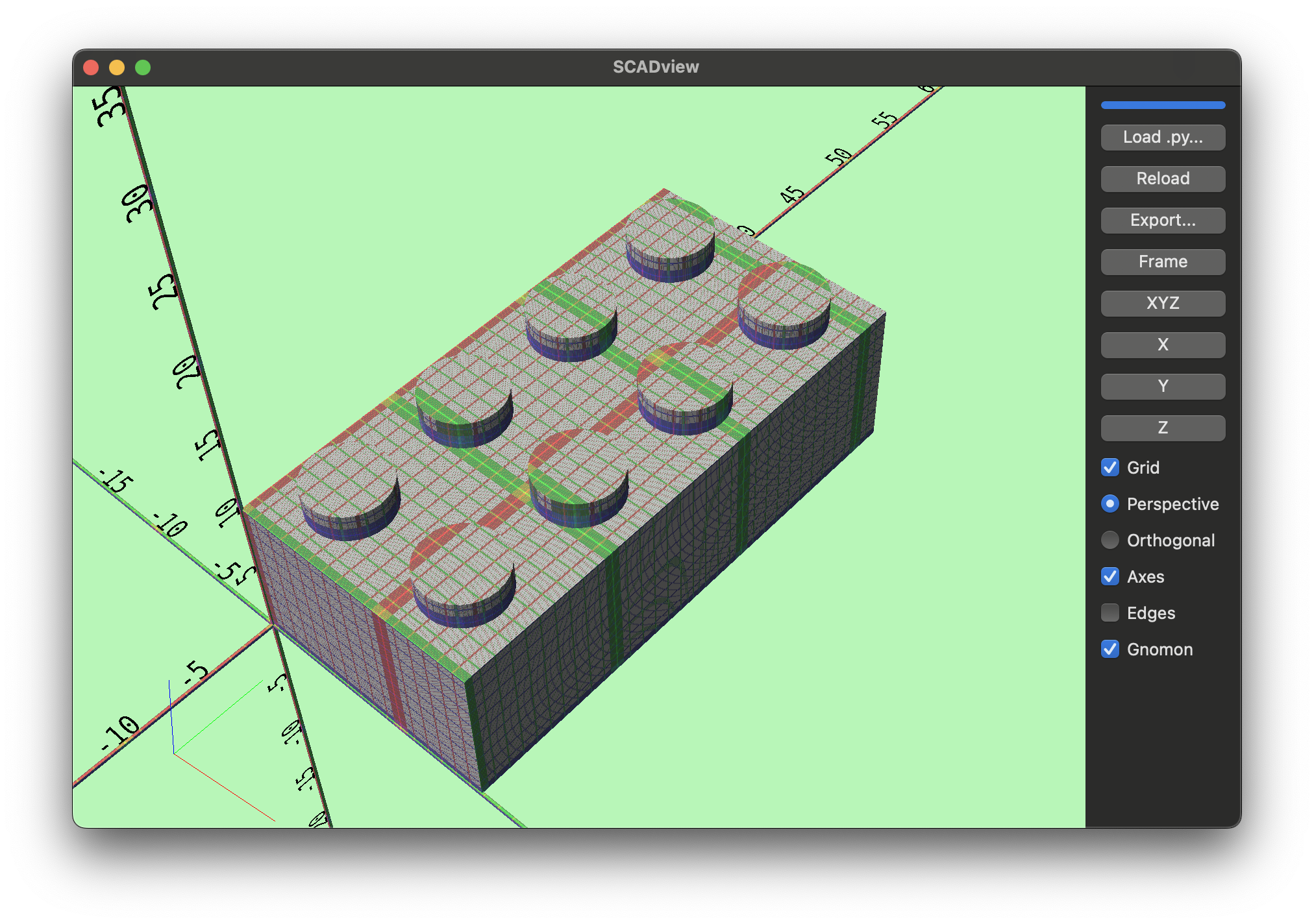
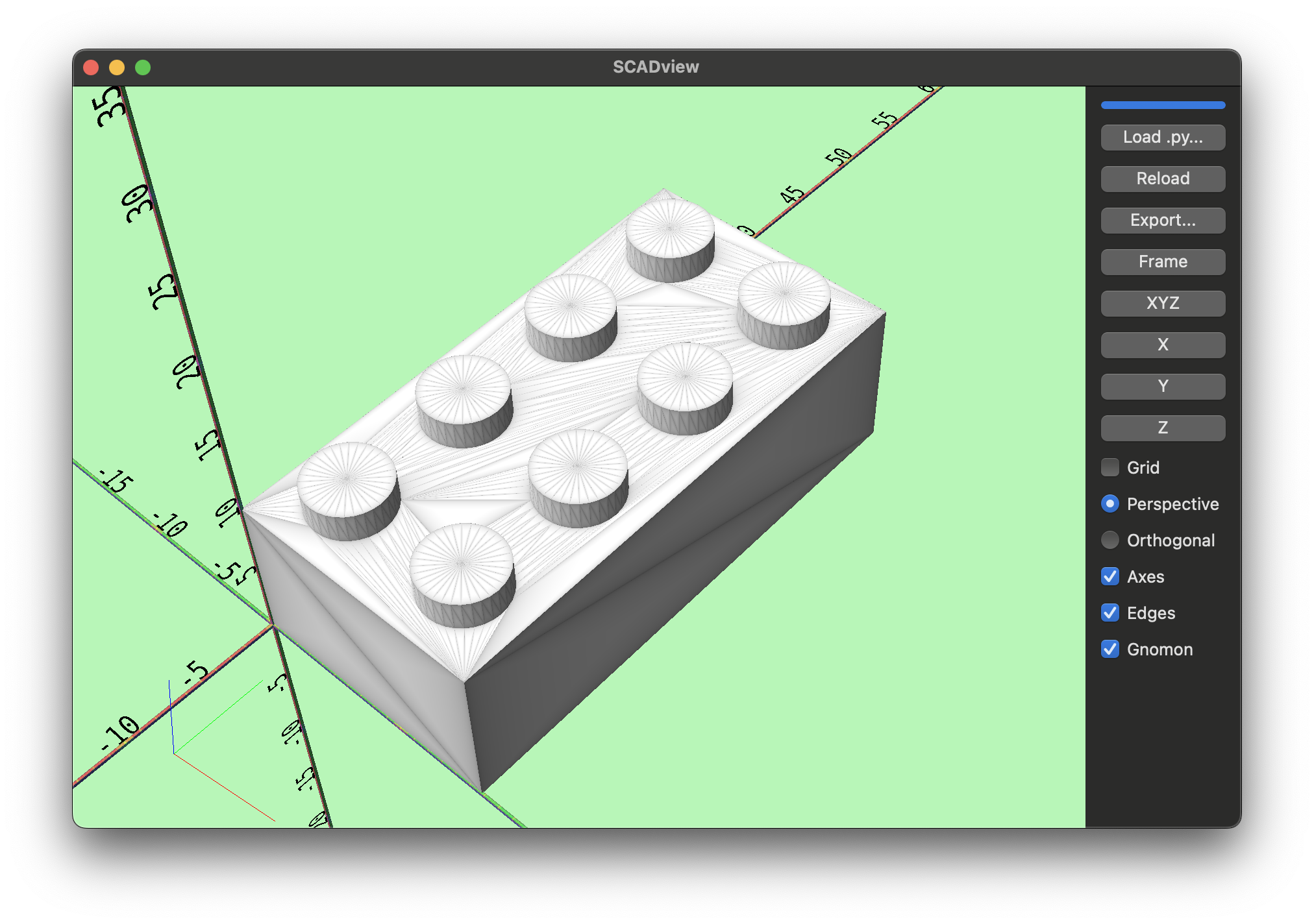
Grid,Axes,Edges, orGnomonfrom the right-side panel or theViewmenu. The grid is a size reference with minor lines at 0.1 and larger lines at 1 and 10.
Grid
Edges
Navigate the Viewport
- If you want to orbit, left-click and drag in the viewport.
- If you want to zoom/dolly, use the mouse wheel.
- If you want keyboard navigation, use
W/SorUp Arrow/Down Arrowfor forward/back,A/DorLeft Arrow/Right Arrowfor left/right, andQ/Efor up/down.
Fonts Helper
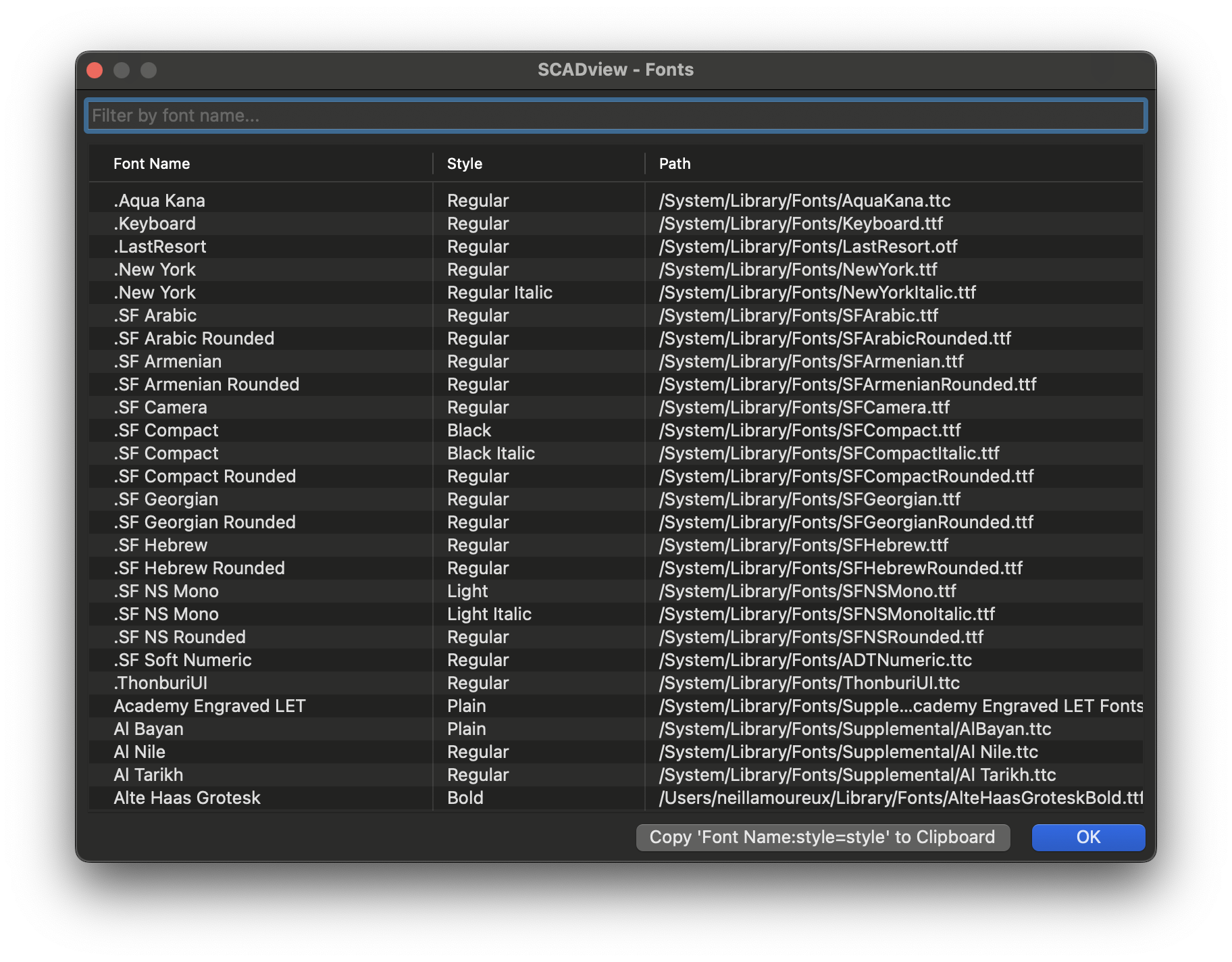
- If you want to browse system fonts for text-based meshes, use
Help > Fonts. You can filter by name and copy aFont Name:style=Stylestring to the clipboard for your scripts.
Status Feedback
- If you want to see loading progress, watch the right-side progress bar. It pulses while loading and fills when complete.
- The viewport background color also provides status:
- Blue: currently loading
- Green: loaded successfully
- Yellow: loaded successfully in debug mode (
create_meshreturned or yielded an array of meshes). - Red: the script has an error.
Reference Appendix
View Directions
XYZmoves to a canonical view: +X points right and toward the screen, +Y points right and away, +Z points up.Xshows the mesh from the +X side,Yfrom +Y, andZfrom +Z.
Export Dependencies
- Some export formats require extra packages. Errors tell you what to install,
such as
pycolladafordaeornetworkxfor3mf.