User Interface
SCADview is a desktop UI for viewing meshes generated by your Python scripts. This guide is organized around common tasks and the controls that help you complete them.
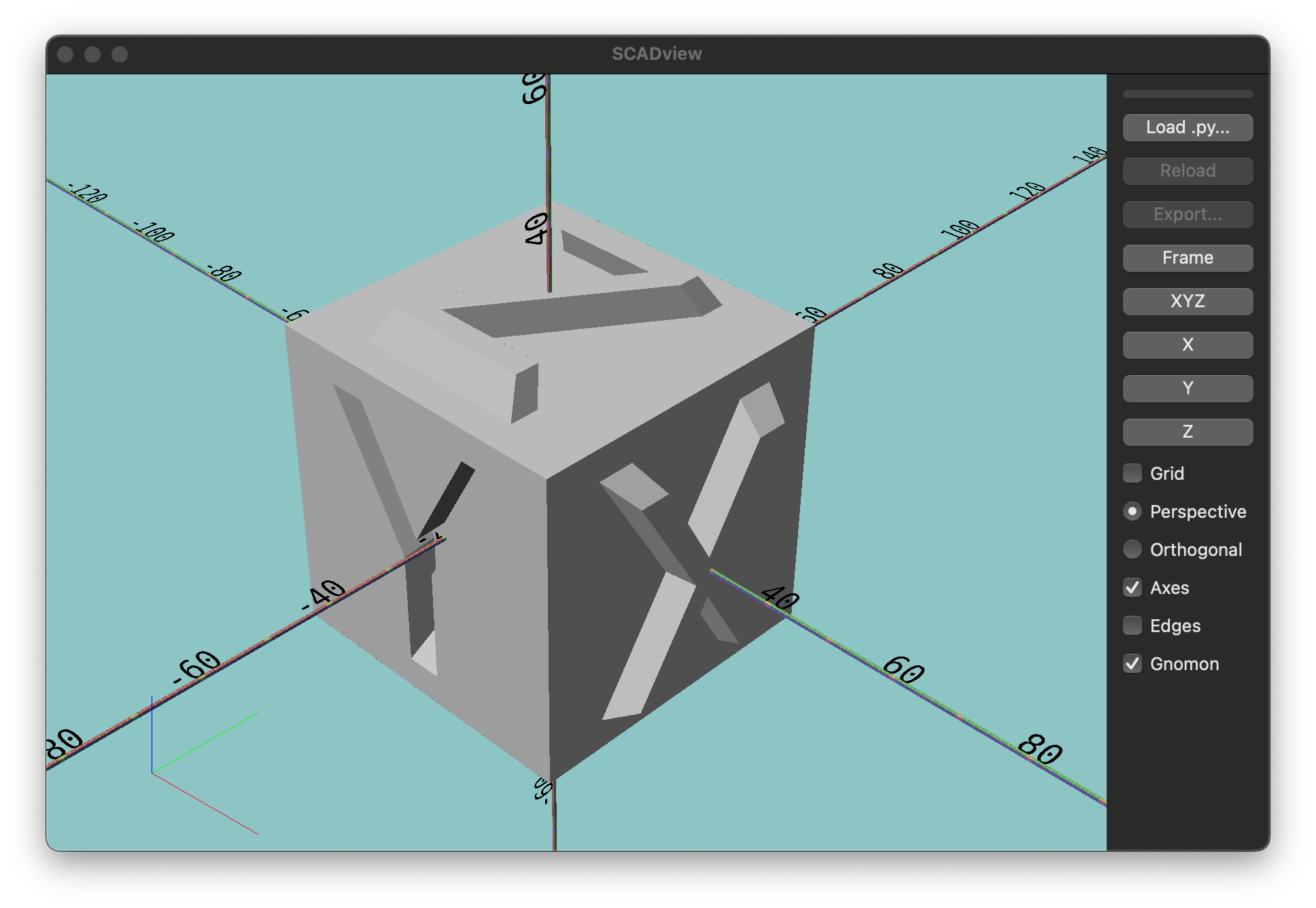
Load, Reload, Export
- If you want to load a mesh script, use
File > Load .py...or theLoad .py...button to pick a Python file that definescreate_mesh. - If you want to re-run the last script after edits, use
File > Reloador theReloadbutton. - If your script uses
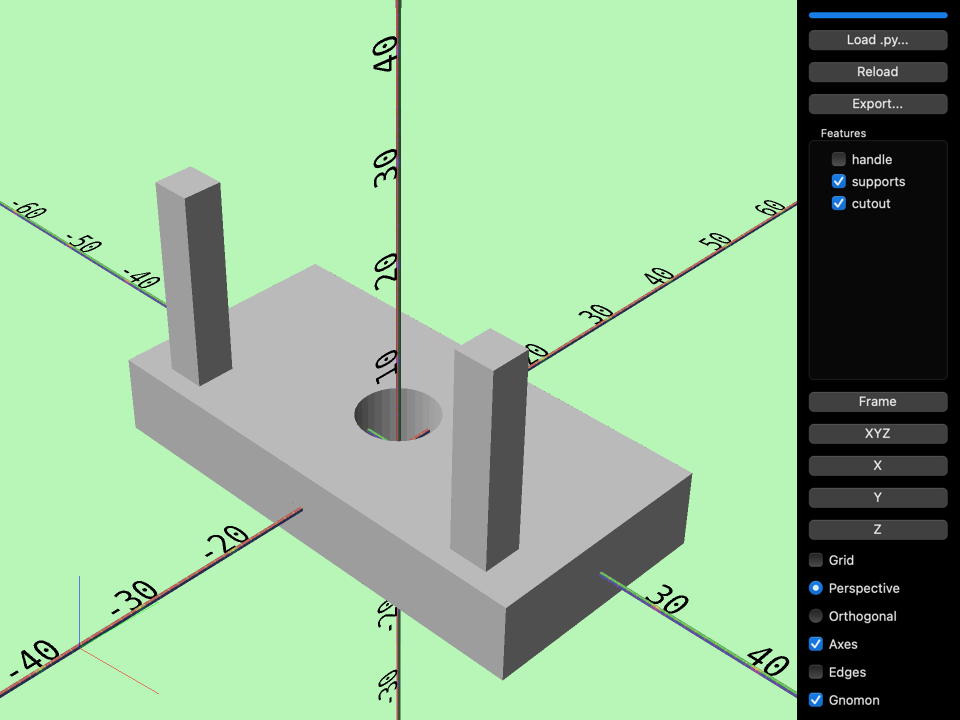
scadview.feature(...), the right sidebar shows aFeaturessection with a globalDebug featurescheckbox and one checkbox per discovered feature. Toggle a feature to reload the script with that optional geometry enabled or disabled. - If
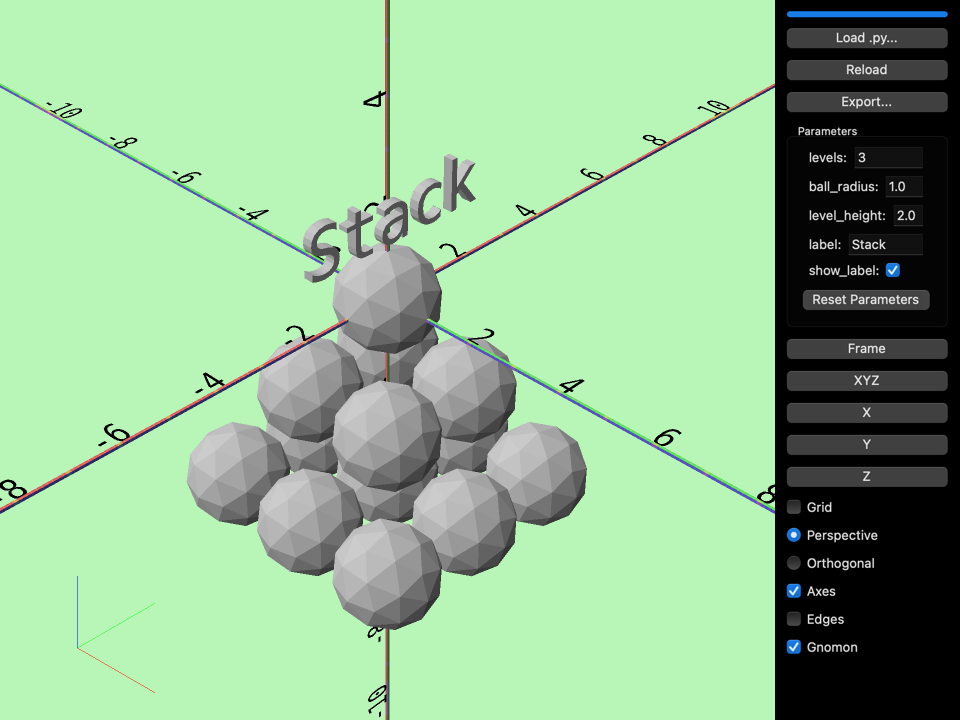
create_meshhas supported defaulted scalar parameters, the sidebar shows aParameterssection. Change a text field and press Enter or move focus away to rebuild the mesh. Checkbox parameters rebuild immediately. - If you want to export the current mesh, use
File > Export...or theExportbutton. Export is enabled only after a load completes. - If an export format reports a missing dependency, install the package named in the error, or choose a different format.
Features
The features capability enable defining component meshes as named "features", and you can turn them on or off through the UI. Turning them off acts as if that mesh was not created and combined (union, subtract or intersection) with the final mesh.
The "Features" section only appears if you name some features in your code.
See the feature(...) API call for details on how to define features.
Debug features is off by default and remains selected while the application is
running. It shows source geometry for enabled features as translucent diagnostic
output instead of the normal composed mesh, including subtractive tool volumes.
It does not change feature enabled state: disabling a feature removes it from the
debug view, while leaving Debug features selected. Unregistered meshes are
omitted from feature debug visualization.
Parameters
The Parameters section appears after a successful parameter discovery for
create_mesh. It supports defaulted bool, int, float, and str
parameters. Text fields accept intermediate edits until you press Enter or move
focus away; invalid values stay visible so you can correct them and do not start
a rebuild. Checkbox values are sent as booleans immediately.
Use Reset Parameters to restore all controls to the defaults from the
currently loaded create_mesh function. Resetting starts one rebuild when a
value changed; pressing it when the controls already match the defaults does
not start another load. See the create_mesh parameter contract
in the API reference for the supported signature and default-value rules.
Accepted parameter values remain selected when a feature toggle, debug toggle, or reload rebuilds the same script. Loading a different script uses that script's defaults. If a script raises after its signature is discovered, its parameter controls remain available while the error is shown.
View and Inspect
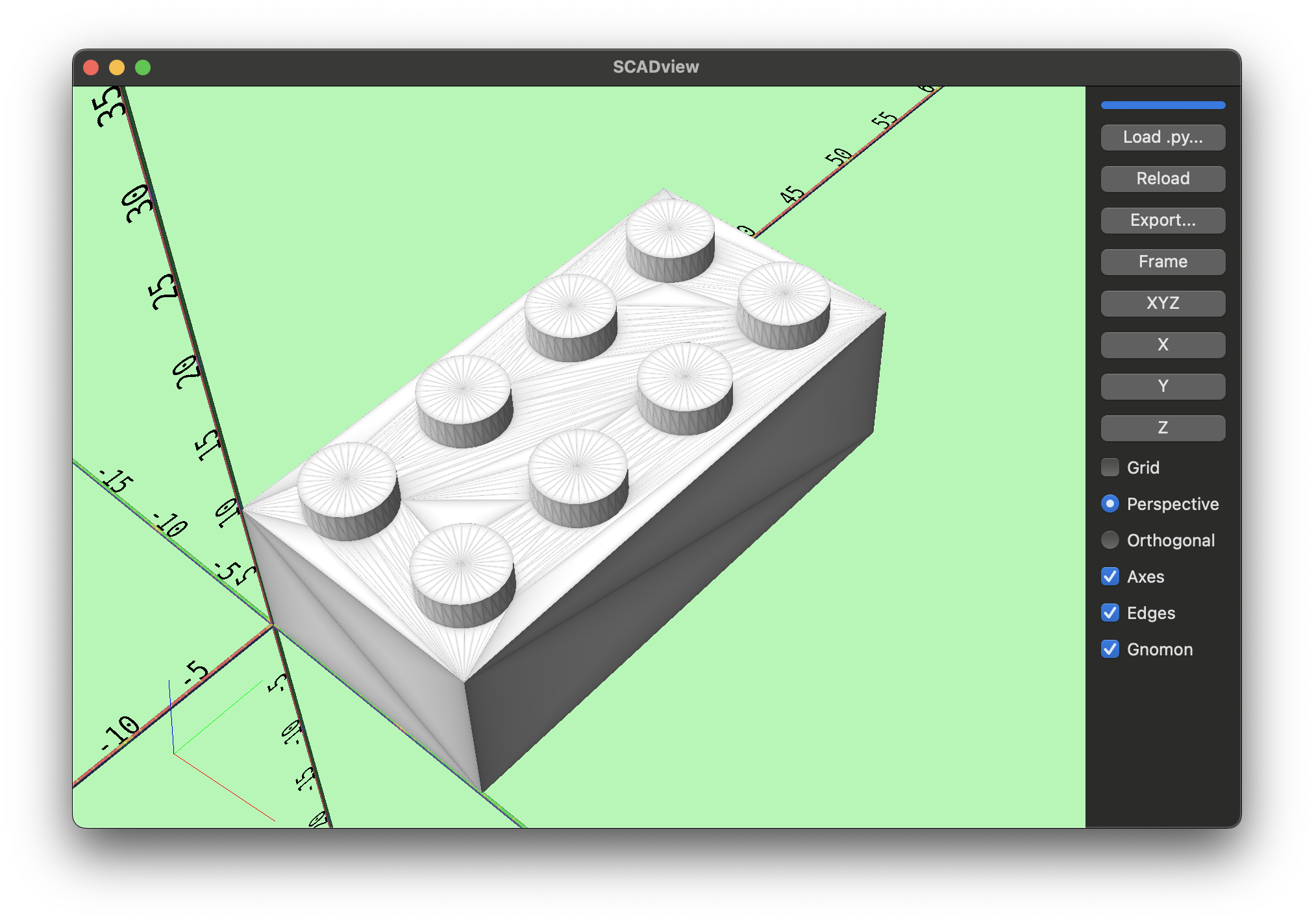
- If you want to refit the camera to the mesh, use
View > Frameor theFramebutton. - If you want fixed viewpoints, use
XYZ,X,Y, orZ(also in theViewmenu).XYZmoves to a canonical view;X,Y, andZshow the mesh from the positive axes. - If you want perspective or orthographic projection, use the radio buttons
labeled
PerspectiveandOrthogonal(also in theViewmenu). - If you want visual helpers, toggle
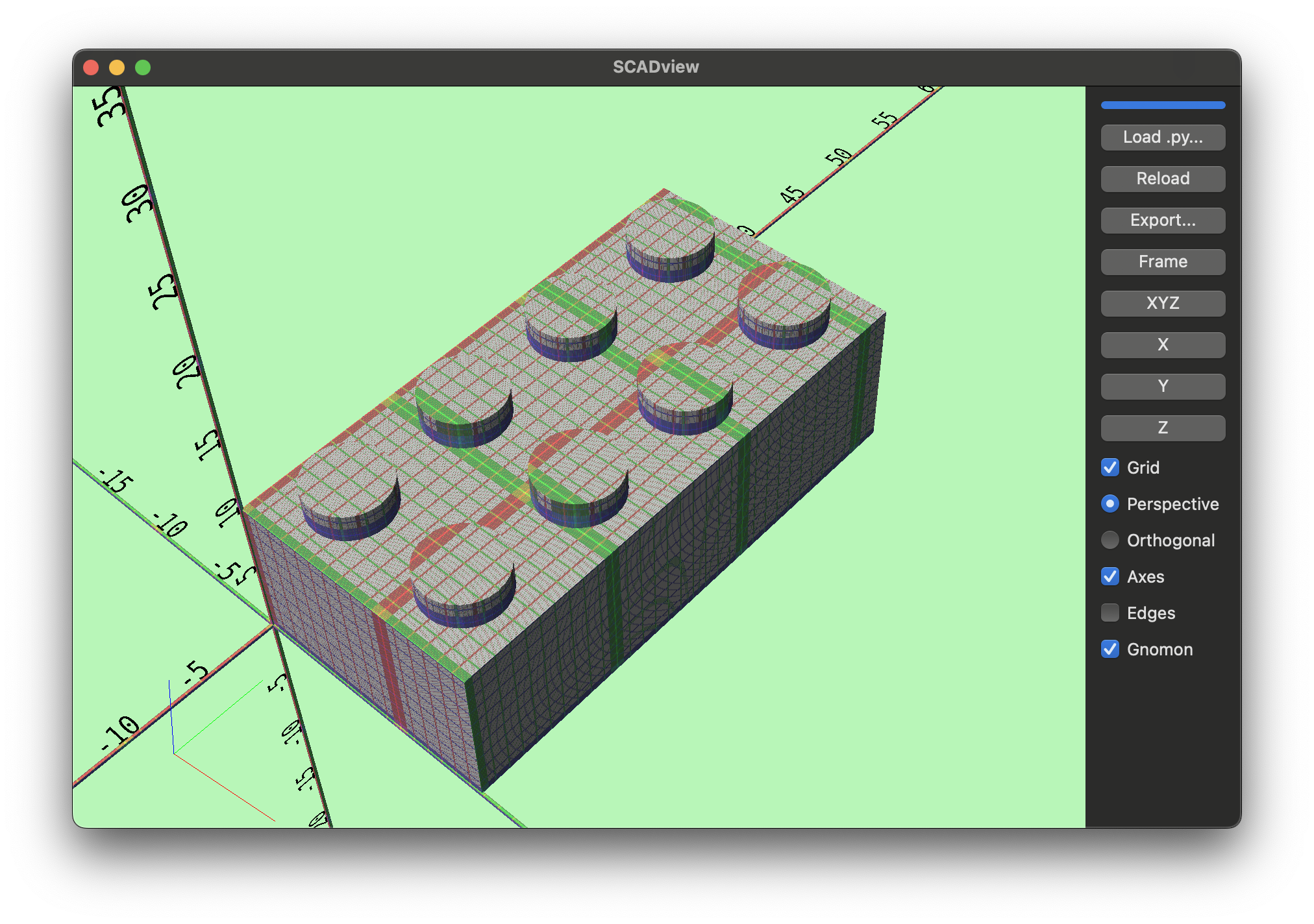
Grid,Axes,Edges, orGnomonfrom the right-side panel or theViewmenu. The grid is a size reference with minor lines at 0.1 and larger lines at 1 and 10.
Grid
Edges
Navigate the Viewport
- If you want to orbit, left-click and drag in the viewport.
- If you want to zoom/dolly, use the mouse wheel.
- If you want keyboard navigation, use
W/SorUp Arrow/Down Arrowfor forward/back,A/DorLeft Arrow/Right Arrowfor left/right, andQ/Efor up/down.
Fonts Helper
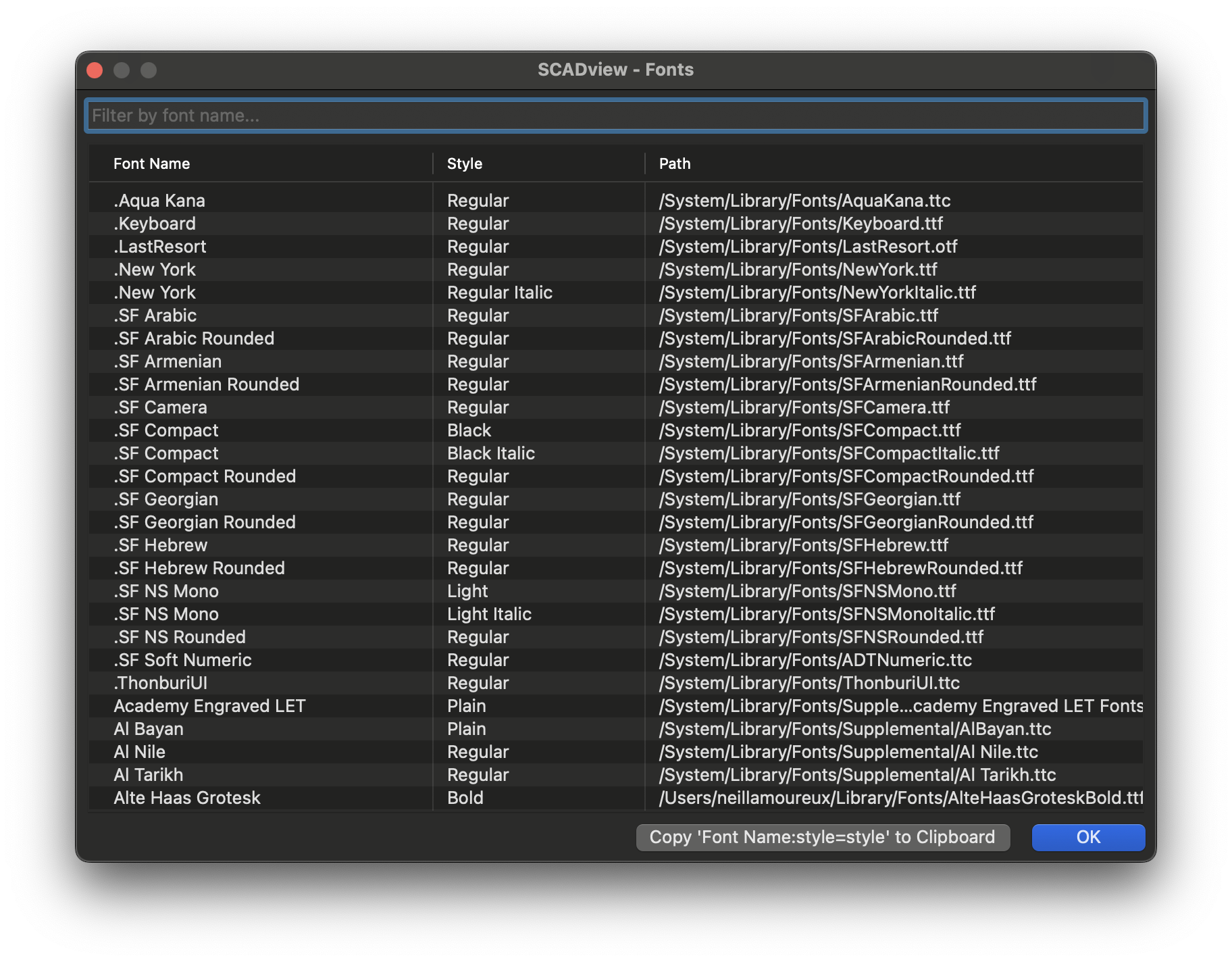
- If you want to browse system fonts for text-based meshes, use
Help > Fonts. You can filter by name and copy aFont Name:style=Stylestring to the clipboard for your scripts.
Status Feedback
- If you want to see loading progress, watch the right-side progress bar. It pulses while loading and fills when complete.
- If your script defines many features, the
Featuressection scrolls independently so the lower sidebar controls remain visible. - The viewport background color also provides status:
- Blue: currently loading
- Green: loaded successfully
- Yellow: loaded successfully in debug mode (
create_meshreturned or yielded an array of meshes). - Red: the script has an error.
Reference Appendix
View Directions
XYZmoves to a canonical view: +X points right and toward the screen, +Y points right and away, +Z points up.Xshows the mesh from the +X side,Yfrom +Y, andZfrom +Z.
Export Dependencies
- Some export formats require extra packages. Errors tell you what to install,
such as
pycolladafordaeornetworkxfor3mf.